How To Adjust A Computer Table For Ergonomic Use
Spending long hours at your computer table makes it essential to know how to adjust a computer table for ergonomic use so your body stays comfortable and supported. An ergonomically tuned workspace reduces strain on your neck, shoulders, back, and wrists, helping you stay focused and productive. With a few simple adjustments to height, monitor position, and accessories, you can turn almost any table into a healthier workspace.
Set the Right Table Height for Your Body
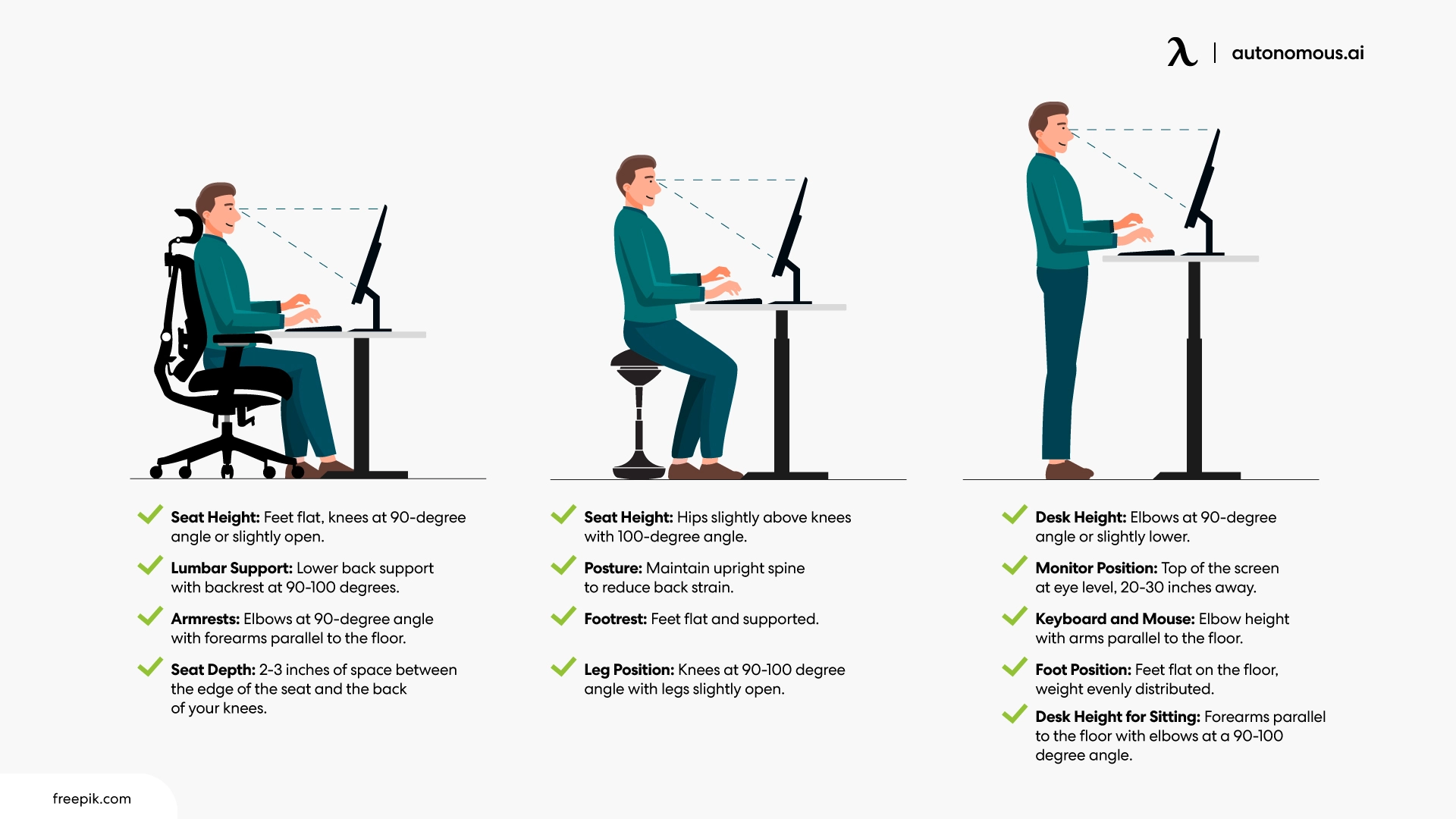
The foundation of an ergonomic setup is getting the computer table height right for your body and chair. Ideally, your elbows should rest at about a 90 to 110 degree angle when your hands are on the keyboard, with your upper arms relaxed at your sides. If the table is too high, you may feel tension in your shoulders; if it is too low, you might round your back. Many modern adjustable tables allow you to raise or lower the surface to match your seated or standing preference, so take the time to fine-tune this setting.
When sitting, plant your feet flat on the floor or on a stable footrest, and let your thighs be roughly parallel to the ground. Your knees should be at about the same angle as your hips, creating a stable base. If your chair cannot lower enough to achieve this comfortably, consider lowering the table slightly or adding a footrest. For standing desks, alternate between sitting and standing and adjust the table height so your elbows remain near 90 degrees even when upright. A computer table that supports both postures gives you flexibility to move through the day.
Position Your Monitor at Eye Level
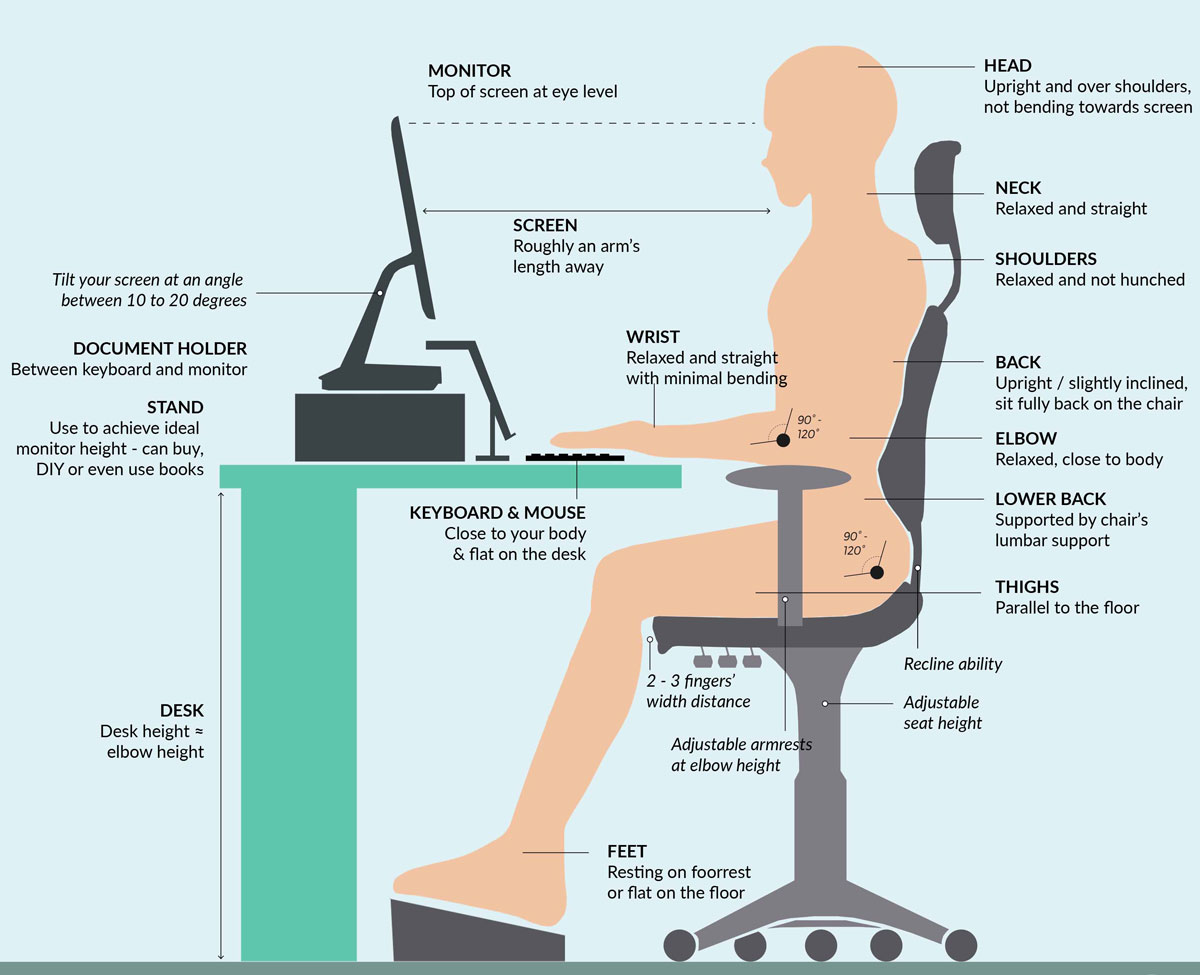
Monitor placement is a critical part of learning how to adjust a computer table for ergonomic use, because screen position strongly affects neck and eye strain. The top of the screen should be at or slightly below eye level so you can look straight ahead or down by about 10 to 20 degrees when viewing the center of the display. Place the monitor about an arm’s length away, roughly 50 to 70 centimeters from your eyes, depending on your vision comfort. If you use a laptop, raising it with a stand or stack of books and adding an external keyboard and mouse often creates a much healthier viewing distance.
Keep the screen perpendicular to windows or bright light sources to reduce glare, and consider using a matte filter if reflections are unavoidable. Your viewing angle should be comfortable without twisting your neck or leaning forward. If you work with multiple screens, align the primary monitor directly in front of you and angle secondary screens toward the center so you do not have to rotate your head sharply. A well positioned monitor encourages a neutral spine and supports long, comfortable work sessions.
Optimize Keyboard and Mouse Positioning
Keyboard and mouse setup plays a big role in wrist and shoulder comfort, so they are key topics when you explore how to adjust a computer table for ergonomic use. Your keyboard should sit at a height where your wrists stay straight and neutral, either at or slightly below elbow level. If the table surface is too high, you may need a lower keyboard tray or a shallower keyboard to keep your arms relaxed. When using a mouse, place it close to the keyboard so you can reach it without stretching, keeping your wrist in a neutral position rather than bending it sideways.

- Use a keyboard tray that adjusts in height and, if possible, in tilt to match your preferred typing angle.
- Choose a mouse with a shape that fits your hand, and avoid gripping it too tightly.
- Take short microbreaks to stretch your fingers and wrists, especially during long typing sessions.
Pay attention to the distance of your arms from your body; keeping your elbows close to your sides reduces strain on your shoulders. A keyboard and mouse positioned for neutral wrists make it easier to maintain good posture and support smooth, relaxed movements.
Arrange Frequently Used Items Within Easy Reach
How you arrange everyday items on your computer table affects how often you twist, lean, or reach uncomfortably. Keep essential tools like your phone, notebook, and mouse within an easy arc in front of you so you can access them without breaking your posture. Use monitor arms or slim organizers to free up desk space and bring items closer without forcing you to hunch over. If you refer to paper documents often, place them at eye level using a document holder positioned between your keyboard and screen.
Cable management is another important detail; use clips, channels, or sleeves to keep cords out of your way and prevent accidental tugs on your devices. A tidy setup reduces visual clutter and distractions, helping you maintain focus and a calm workspace. When everything you need is within comfortable reach, you spend less time stretching and twisting, which supports better overall ergonomics.
Use Supportive Seating and Add Accessories
Even with a perfectly adjusted computer table, your chair and added accessories complete the ergonomic picture. Choose a chair that supports your lower back with adjustable height and, if possible, armrests that let your shoulders relax. Your feet should rest flat on the floor or on a footrest, with your thighs supported along their length to reduce pressure under your legs. If your chair lacks lumbar support, a small cushion or rolled towel placed behind your lower back can make a big difference.
- Consider an adjustable footrest to keep your feet grounded and your legs at a healthy angle.
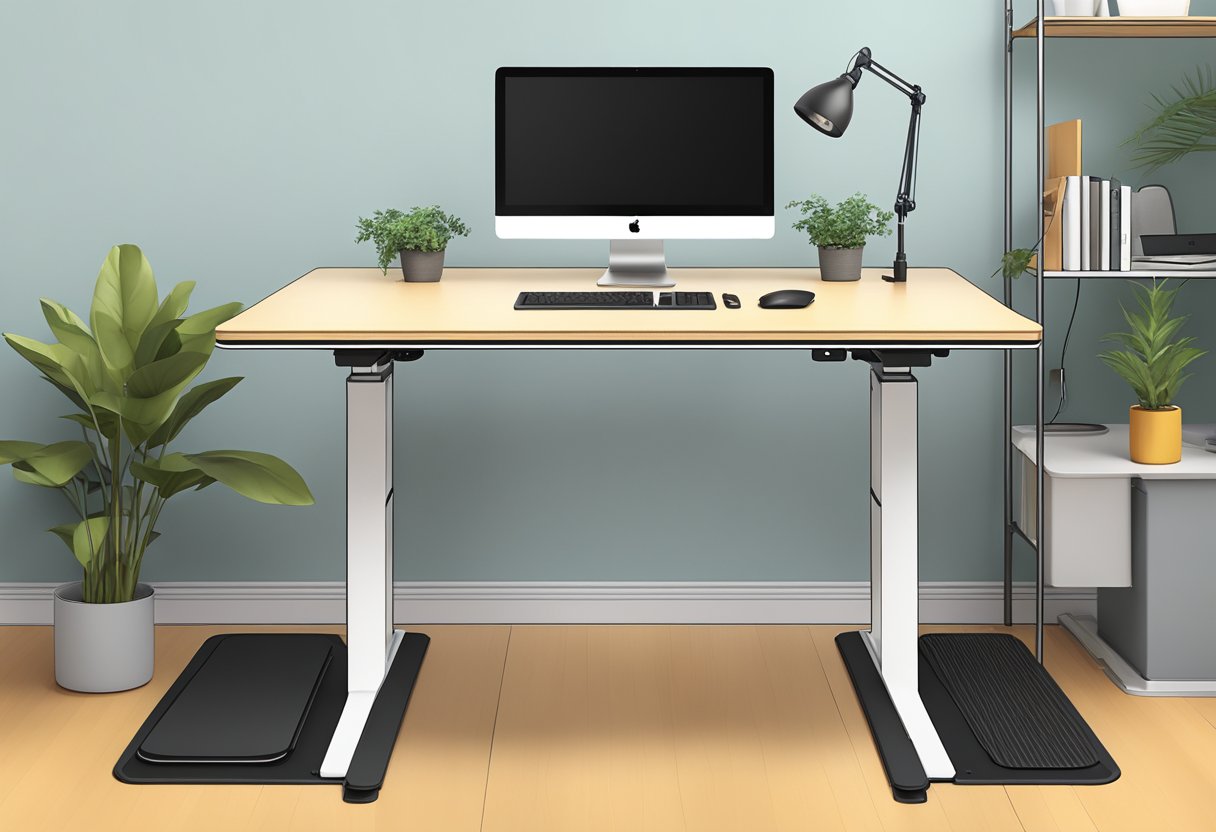
- Use an anti fatigue mat if you alternate between sitting and standing at a standing desk.
- Try a negative tilt keyboard tray to promote a more open wrist angle during extended typing.
Accessories like monitor arms, sit stand desks, and ergonomic input devices give you flexibility to fine tune your setup. Small changes, such as raising the screen a few centimeters or switching to an ergonomic mouse, can significantly improve comfort during long work sessions.
Create Habits That Support Good Posture
Learning how to adjust a computer table for ergonomic use is only part of the process; building habits that protect your body is equally important. Stand up and move regularly, aiming for short breaks every 30 to 60 minutes to stretch your legs, shoulders, and back. Use these moments to reset your posture, check that your monitor and keyboard remain in comfortable positions, and readjust if needed.
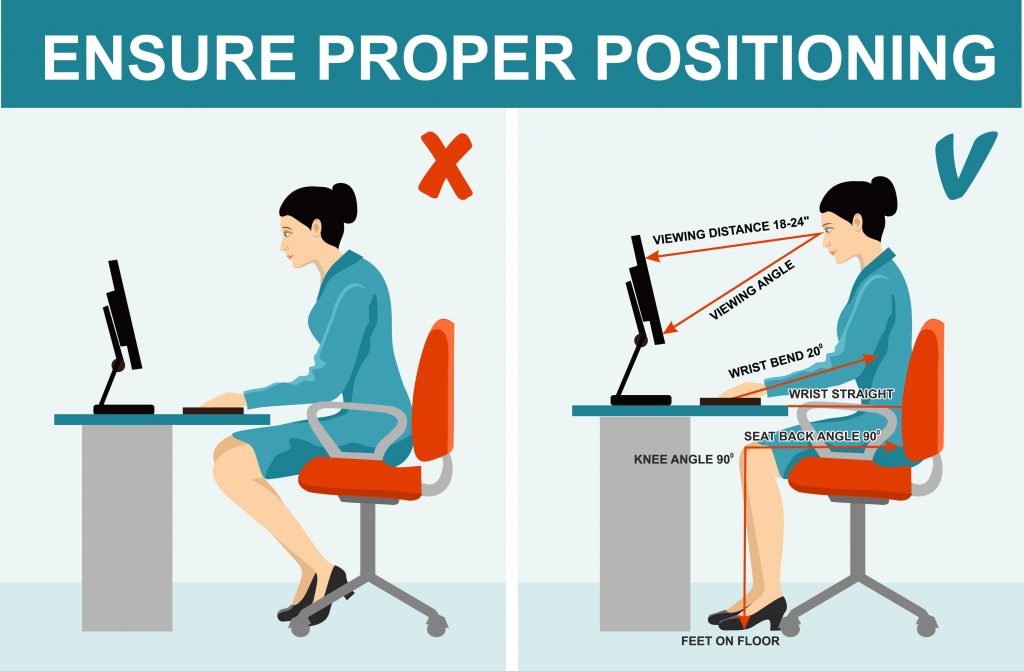
Throughout the day, periodically check in with your body by noticing whether your shoulders are creeping up, your neck is leaning forward, or your lower back is rounding. Gentle stretches for your neck, chest, hips, and wrists help counteract the effects of repetitive movements. By combining smart table adjustments with consistent movement and awareness, you create a sustainable workspace that supports long term health and comfort.
Mastering how to adjust a computer table for ergonomic use means aligning your table height, monitor position, keyboard and mouse setup, seating, and daily habits so your body feels supported. Small, thoughtful changes can reduce strain, prevent discomfort, and help you stay focused during long work sessions. By treating ergonomics as an ongoing process rather than a one time fix, you build a workspace that works with your body and supports your productivity and well being.
The Perfect Ergonomic Desk Setup To Avoid Back & Neck Pain
This 15 point ergonomic checklist will help avoid the issues related to sitting in front of a computer all day. My Programs: Age ...
